
The Death of Context-Switching in Software Engineering
For years, my software development setup was built around a traditional IDE, a browser packed with twenty documentation tabs, and a continuous cycle of copy-pasting code back and forth into AI chat interfaces.
Whenever I hit a complex bug or needed to implement a non-trivial feature, my workflow looked like this:
-
Highlight the relevant code in my editor and hit
Cmd + C. -
Alt-Tab over to a browser window running ChatGPT or Claude.
-
Paste the code along with a detailed prompt explaining the file structure.
-
Run the code locally, hit an unexpected runtime error, copy the stack trace from the terminal, and feed it back into the AI.
-
Manually integrate the generated diff across three different files, hoping I didn’t miss a variable export or import statement.
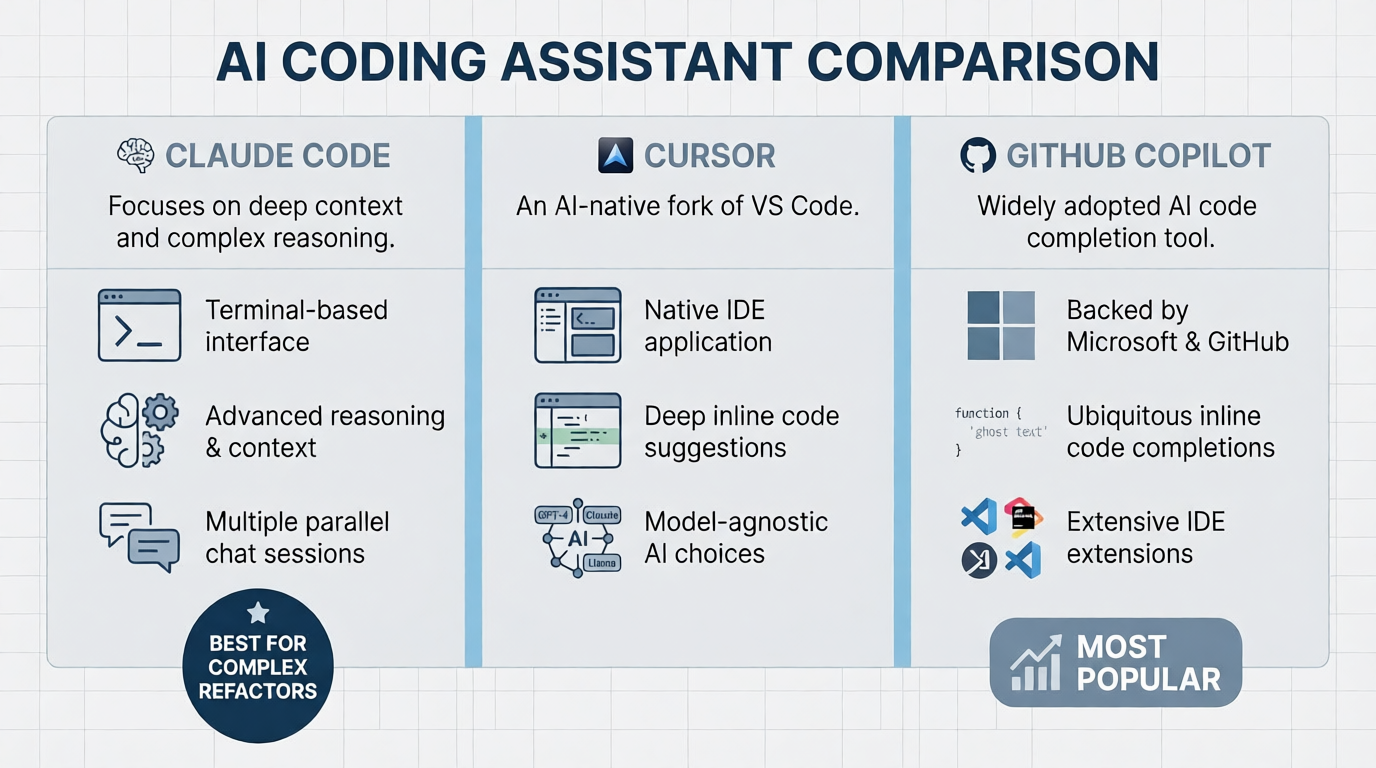
Even with inline autocomplete extensions like GitHub Copilot, AI felt like a high-tech spellchecker—helpful for single-line suggestions, but oblivious to the broader architecture of my applications.
That all changed when I migrated my primary workspace to Cursor AI. By replacing my standard IDE with an editor built natively around codebase-wide intelligence and multi-file AI agency, I didn’t just tweak my setup—I completely redefined my engineering workflow and effectively doubled my shipping speed.
Here is how I transitioned to Cursor AI, the specific features that transformed my output, and the exact production workflow I use daily.
What Makes Cursor AI Fundamentally Different?
To understand why Cursor feels like a generational leap, you first have to understand what it isn’t. It isn’t a browser plugin, and it isn’t a side-panel extension squeezed into a legacy code editor.
Cursor is a direct fork of Visual Studio Code. Because it is built on the VS Code open-source foundation, the migration process took less than five minutes. When I installed it, Cursor automatically imported all my existing extensions, keybindings, color themes, and custom workspace settings. The editor felt instantly familiar—except it had a deep neural layer running beneath every file tree, terminal window, and editing buffer.
┌─────────────────────────────────────────────────────────────────────────────┐
│                      TRADITIONAL VS CODE WORKFLOW                           │
│  Editor ──(Manual Copy)──> Browser Chat ──(Manual Paste)──> Editor Diff     │
└─────────────────────────────────────────────────────────────────────────────┘

┌─────────────────────────────────────────────────────────────────────────────┐
│                        CURSOR AI AGENT WORKFLOW                             │
│  [ Codebase Indexing + Terminal + Agent ] ──> Direct Multi-File Execution   │
└─────────────────────────────────────────────────────────────────────────────┘
The fundamental difference lies in Codebase Indexing. Instead of analyzing files in isolation, Cursor generates semantic embeddings across your entire repository. It understands how your frontend API client connects to your server-side route handlers, how your database schemas map to your type definitions, and where your utility functions are consumed across every folder.
The 3 Game-Changing Features That Turbocharged My Output
Transitioning to Cursor drastically reduced my cycle times, primarily driven by three core capabilities:
1. Multi-File Editing via Composer
Traditional AI plugins operate on a single file at a time. But real-world software engineering rarely involves isolated files. Adding a new feature usually requires touching an API endpoint, a UI component, a state management hook, and a test file.
Cursor’s Composer mode solves this by granting the AI multi-file editing capability. By bringing up the Composer interface, I can describe a macro-level task in natural language:
“Add a new Stripe webhook handler for subscription cancellations, update the user database model status to ‘canceled’, and update the dashboard UI banner to reflect the account status.”
Instead of outputting raw code snippets in a chat window for me to manually distribute, Composer drafts real-time code modifications across all relevant files simultaneously. I can review the live git diffs inline, accept or reject specific file changes, or request targeted refinements before committing the work.
2. Context Tagging with @ Symbols
Rather than manually writing out explanatory prompts about my project structure, Cursor utilizes a powerful context-referencing system. By typing @ inside the prompt window, I can dynamically attach deep context straight into the LLM’s attention mechanism:
-
@Codebase: Instructs the model to perform a semantic vector search across the entire project to pull in relevant dependencies. -
@file.ts: Pins a specific file directly to the conversation for surgical refactoring. -
@Git: References recent commits or diffs to debug new regression errors. -
@Docs: Pulls in indexed third-party documentation (such as Next.js, Supabase, or Tailwind) so the AI never relies on outdated training cutoffs.
3. Integrated Terminal Error Resolution
Debugging build scripts or runtime crashes used to be a major time sink. In Cursor, when a command fails in the integrated terminal—whether it’s a TypeScript compilation error, a broken Jest test, or a failed Docker build—a simple click on the “Fix with AI” button passes the exact terminal output and related file references straight into the model. The AI diagnoses the root cause and generates an immediate fix in context.
My Daily Cursor AI Workflow Blueprint
To get maximum leverage out of Cursor without introducing code bloat or subtle bugs, I follow a disciplined four-step development blueprint.
[ Step 1: Define .cursorrules ] ──> [ Step 2: Plan with Agent ] ──> [ Step 3: Composer Multi-File Build ] ──> [ Step 4: Surgical Refactor (Cmd+K) ]
Step 1: Establishing Rules with .cursorrules
To prevent the AI from generating code that violates project conventions, I keep a .cursorrules file in the root directory of every workspace. This file acts as permanent prompt conditioning for the AI agent.
Markdown
# Project Conventions for AuditPulse

- Framework: Next.js (App Router), TypeScript, Tailwind CSS.
- Components: Use functional components with explicit TypeScript interfaces.
- State: Prefer server components where possible; use Zustand for global client state.
- Error Handling: Always wrap async route handlers in try/catch blocks with typed responses.
- Formatting: Do not remove existing inline comments unless explicitly asked.
Step 2: Planning Before Execution
Before letting the AI write a single line of code for a complex task, I use the Chat interface to map out the architecture:
“@Codebase I need to implement rate limiting on our public search API. Analyze our current middleware and propose a strategy using Redis. Do not edit any files yet—just give me a step-by-step implementation plan.”
Reviewing the plan before execution keeps me in the driver’s seat and prevents the model from taking bad architectural turns.
Step 3: Multi-File Execution via Composer
Once I approve the plan, I feed it into Composer (Cmd + I). The model creates new files, modifies existing routes, and connects imports. As the diffs populate, I review the changes file by file—treating the AI output as a pull request from a senior developer.
Step 4: Inline Polishing with Cmd + K
For micro-edits—like rewriting a regex pattern, adding error handling to a fetch call, or converting a promise chain to async/await—I highlight the block of code directly in the file editor and hit Cmd + K. This executes a fast, localized edit without touching the rest of the file.
Traditional IDE + Copilot vs. Cursor AI Agent Workflow
The Shift in Mindset: Developer as System Architect
Replacing my traditional IDE with Cursor AI required a fundamental shift in how I view my role as a software engineer.
When you double your coding speed, the primary bottleneck in software development stops being syntax execution (typing out boilerplate, syntax memory, mechanical wiring) and becomes system architecture and code auditing.
Old Role:  [ Syntax Writing (70%) ] ──> [ Architecture (20%) ] ──> [ Code Review (10%) ]
New Role:  [ Architecture (40%) ] ──> [ Code Review & Auditing (50%) ] ──> [ Syntax Writing (10%) ]
The developers who struggle with AI editors are usually those who hit “Accept All” blindly without reading generated diffs. Treating AI output as flawless code leads to brittle architectures and hidden edge-case bugs.
However, when you use Cursor as an agentic partner—guiding it with clear architecture plans, enforcing strict repository rules, and carefully reviewing every diff—it completely eliminates the tedious mechanics of writing software.
Final Thoughts
Transitioning to Cursor AI felt less like switching code editors and more like hiring a tireless, lightning-fast pair-programmer who knows every line of my codebase by heart. By moving away from detached browser chats and single-file autocompletes, I reclaimed hours of lost productivity every single week.
If you are still context-switching between a traditional IDE and external browser windows, make the switch. Import your settings, set up a .cursorrules file, embrace Composer, and experience what software engineering feels like when your tools move at the speed of thought.
For a full walkthrough on installing, setting up settings, and mastering the core workflows of this editor, check out this Cursor AI Tutorial for Beginners. This video provides a step-by-step visual guide to navigating the interface, configuring settings, and building real-world projects with Cursor’s AI features.