Introduction: The Case for Total AI Sovereignty
For the past few years, the standard approach to using high-performance artificial intelligence was simple: sign up for a cloud platform, paste your API key into an app, and pay a monthly subscription fee. While cloud-based LLMs are convenient, they come with substantial trade-offs: strict rate limits, recurring monthly costs, data privacy concerns, internet dependency, and the constant risk of API outages or silent model deprecations.
When DeepSeek-R1 launched, it completely shattered the myth that frontier-class reasoning models had to remain locked behind closed cloud APIs. By open-sourcing the weights to a model capable of competing head-to-head with proprietary reasoning architectures, DeepSeek enabled developers and privacy-conscious users to run a true “thinking” AI locally on consumer hardware.
I set out to build the ultimate offline local AI setup—a zero-latency, 100% private environment running DeepSeek-R1 completely offline. Using Ollama for CLI automation and backend integrations, alongside LM Studio for visual exploration and server management, I created a local AI workstation that handles complex coding, logic synthesis, and deep research without sending a single byte of data to external servers.
Here is my step-by-step guide to configuring, tuning, and running DeepSeek-R1 locally on your own machine.
Choosing the Right Local Engine: LM Studio vs. Ollama
When running models locally, picking the right runtime engine dictates how easily you can interface with your LLM. Rather than choosing between LM Studio and Ollama, I use both in a complementary setup.
┌─────────────────────────────────────────────────────────────────────────────┐
│                           LOCAL AI RUNTIME ARCHITECTURE                      │
├─────────────────────────────────────────────────────────────────────────────┤
│  [ DeepSeek-R1 GGUF Weights ]                                               │
│             │                                                               │
│             ├──> [ Ollama (CLI / Service) ] ──> Local REST API (Port 11434)  │
│             │                                  └──> Open WebUI / Cursor / IDE│
│             │                                                               │
│             └──> [ LM Studio (GUI / Server) ] ──> Local Server (Port 1234)  │
│                                                └──> Playground & Benchmarks │
└─────────────────────────────────────────────────────────────────────────────┘
-
Ollama (The Backend Workhorse): Runs silently as a background service. It excels at lightweight memory management, command-line interactions, and providing a clean local API endpoint (
http://localhost:11434) for integration into external tools like Open WebUI, Cursor, or custom Python scripts. -
LM Studio (The Visual Command Center): Offers an intuitive GUI for searching huggingface repos, adjusting GPU offload layers, monitoring VRAM allocation in real time, and experimenting with system prompts and sampling parameters.
Engine Feature Comparison
Hardware Reality Check: Matching Models to VRAM
DeepSeek-R1 comes in several sizes—ranging from dense distilled versions (1.5B, 7B, 8B, 14B, 32B, 70B) to the massive 671B flagship Mixture-of-Experts (MoE) model. To get smooth performance (20+ tokens per second), you must match the model size and quantization level to your available hardware.
Quantization converts model weights from high-precision floats (16-bit) to smaller integers (such as 4-bit or 5-bit) with virtually zero loss in reasoning accuracy.
Available Hardware VRAM ──> Select Model Distill ──> Choose Quantization (e.g. Q4_K_M)
Recommended Sizing Matrix
Pro-Tip: The 32B Distill variant is widely considered the sweet spot for consumer workstations, delivering reasoning capabilities that rival full-scale models while fitting comfortably inside a single 24GB GPU or Apple Silicon Mac.
Setup Option 1: Lightning-Fast CLI Deployment via Ollama
If you want your local AI running in under two minutes, Ollama is the fastest path.
Step 1: Installing Ollama
Download and install the runtime for your platform (macOS, Linux, or Windows) from the official repository:
Bash
# On Linux / macOS via terminal
curl -fsSL https://ollama.com/install.sh | sh
Step 2: Pulling and Running DeepSeek-R1
Run the desired model size directly from your terminal. Ollama automatically fetches the quantized GGUF weights, allocates VRAM, and opens an interactive chat loop:
Bash
# To run the 8B parameter model (Great for 8GB GPUs)
ollama run deepseek-r1:8b

# To run the 14B parameter model (Great for 16GB GPUs)
ollama run deepseek-r1:14b

# To run the 32B parameter model (Great for 24GB GPUs)
ollama run deepseek-r1:32b
Step 3: Understanding Reasoning Output (<think> Tags)
Unlike standard conversational models, DeepSeek-R1 generates explicit internal reasoning chains inside <think> tags before rendering its final answer:
>>> Solve this step-by-step: How many 'r's are in the word "strawberry"?

<think>
1. Analyze the target word: "strawberry".
2. Break down the letters: s - t - r - a - w - b - e - r - r - y.
3. Count instances of the letter 'r':
   - Position 3: 'r' (stRawberry)
   - Position 8: 'r' (strawbeRry)
   - Position 9: 'r' (strawberRy)
4. Total count = 3.
</think>

The word "strawberry" contains exactly 3 'r's.
Setup Option 2: Graphical Control & Local Server with LM Studio
For visual prompt engineering, detailed hardware monitoring, and setting up a persistent OpenAI-compatible API server, LM Studio provides maximum control.
Step 1: Downloading and Searching the Model
-
Open LM Studio and navigate to the Search tab (magnifying glass icon).
-
Search for
DeepSeek-R1-DistillorDeepSeek-R1-GGUF. -
Select a release from a verified publisher (such as
UnslothorLMStudio). -
Select your preferred quantization level (e.g.,
DeepSeek-R1-Distill-Qwen-32B-Q4_K_M.gguf) and click Download.
[ Search: "DeepSeek-R1" ] ──> Select Quant: Q4_K_M ──> Click Download ──> Load to Memory
Step 2: Configuring GPU Acceleration
-
Navigate to the Chat or Developer tab.
-
Select your downloaded model from the top dropdown menu.
-
On the right-hand settings panel, expand GPU Acceleration:
-
Set GPU Offload Layers to
Max(pushes all network layers to VRAM). -
Set Context Length to
8192or16384depending on available memory.
-
-
Set sampling parameters:
-
Temperature: Set to
0.6(DeepSeek officially recommends0.5–0.7for reasoning stability; setting it to0.0can cause repetitive thinking loops). -
Top P: Set to
0.95.
-
Step 3: Starting the Local OpenAI-Compatible Server
LM Studio allows you to host your local model as an API endpoint compatible with any app built for OpenAI:
-
Click the Local Server icon on the sidebar.
-
Ensure the selected model is loaded into memory.
-
Click Start Server (default address:
http://localhost:1234).
Now any client app expecting an OpenAI API key can point to your local machine:
Bash
# Example API call testing your local LM Studio endpoint
curl http://localhost:1234/v1/chat/completions \
  -H "Content-Type: application/json" \
  -d '{
    "model": "deepseek-r1-distill-qwen-32b",
    "messages": [
      {"role": "user", "content": "Write a python script to monitor CPU usage."}
    ],
    "temperature": 0.6
  }'
Connecting Your Local Setup to Frontends and IDEs
Having DeepSeek-R1 running in a terminal or LM Studio panel is great, but its true power shines when connected to your daily apps.
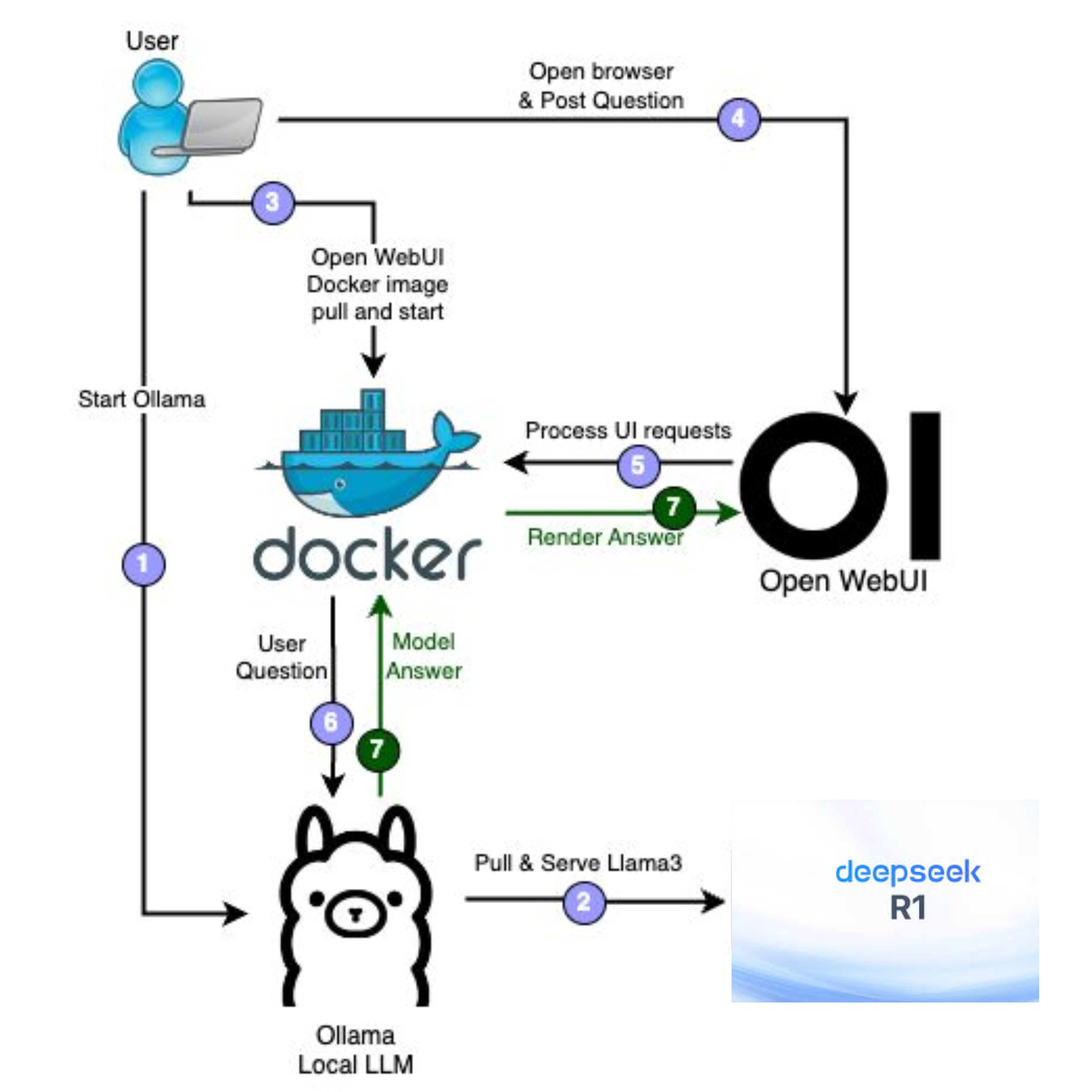
1. Connecting to Open WebUI (Browser Interface)
Open WebUI offers a ChatGPT-like browser interface for your local models:
Bash
# Run Open WebUI via Docker linked to your local Ollama instance
docker run -d -p 3000:8080 --add-host=host.docker.internal:host-gateway \
  -v open-webui:/app/backend/data \
  --name open-webui \
  --restart always \
  ghcr.io/open-webui/open-webui:main
Open http://localhost:3000 in your browser to access a full conversational UI with chat history, document upload (RAG), and model switching.
2. Connecting to VS Code / Cursor
You can use DeepSeek-R1 as your local coding assistant inside code editors:
-
Install an extension like Continue.dev.
-
Update
~/.continue/config.jsonto point to your local Ollama or LM Studio server:
JSON
{
  "models": [
    {
      "title": "Local DeepSeek-R1",
      "provider": "ollama",
      "model": "deepseek-r1:14b",
      "apiBase": "http://localhost:11434"
    }
  ]
}
Performance Tuning and Best Practices
To get the best performance out of your offline setup, keep these golden rules in mind:
-
Do Not Strip the Reasoning Chains: When processing R1 outputs via API, avoid filtering out the
<think>block before feeding responses back into multi-turn conversations. The model relies on its prior thinking context to maintain logical continuity. -
Keep Temperature Balanced: Never run reasoning models at
0.0temperature. DeepSeek-R1 relies on slight sampling variance to explore logical paths. Keep your temperature between0.5and0.7. -
Monitor System Memory Overlap: If your model consumes 100% of your VRAM, system memory swapping can drop your tokens-per-second to single digits. Drop down one quantization level (e.g., from
Q5_K_MtoQ4_K_M) to keep a buffer of free VRAM for context expansion.
Conclusion: True AI Privacy and Independence
Running DeepSeek-R1 locally using Ollama and LM Studio is more than just a fun tech experiment—it’s a shift toward data sovereignty.
With this setup, you get:
-
Zero Subscription Fees: High-level reasoning performance without monthly costs.
-
100% Data Privacy: Sensitive code, financial spreadsheets, and proprietary notes never leave your local RAM.
-
Offline Availability: Complete functionality whether you’re on a flight, in a remote location, or dealing with internet outages.
By pairing Ollama’s lightweight background engine with LM Studio’s visual control panel, you can build a powerful, private, offline AI workstation that runs entirely under your control.