The Uncanny Valley Bottleneck in AI Avatars
If you have spent any time building digital avatars or faceless video channels, you know the frustration of the “uncanny valley.”
For years, creating an AI talking head meant choosing between two compromising flaws:
-
Robotic Stiffness: The lips move in sync with the audio, but the head remains completely static—staring into the camera with dead eyes and motionless shoulders.
-
Exaggerated Distortion: The head moves around dynamically, but the mouth warping looks detached from the audio, leading to unnatural lip flaps, blurred teeth, and facial warping.
Standard AI video generators often struggle to solve both problems simultaneously. When I evaluated standalone tools, Hedra impressed me with its audio-driven lip sync and realistic voice articulation. However, I wanted more granular control over micro-expressions—subtle eye blinks, head tilts, eyebrow twitches, and emotional cues.
On the other side of the ecosystem was LivePortrait, an open-source portrait animation framework developed by Kuaishou Technology. LivePortrait excels at depth-guided motion transfer. It takes a driving video (or motion reference) and maps facial gestures onto a static image with lifelike accuracy.
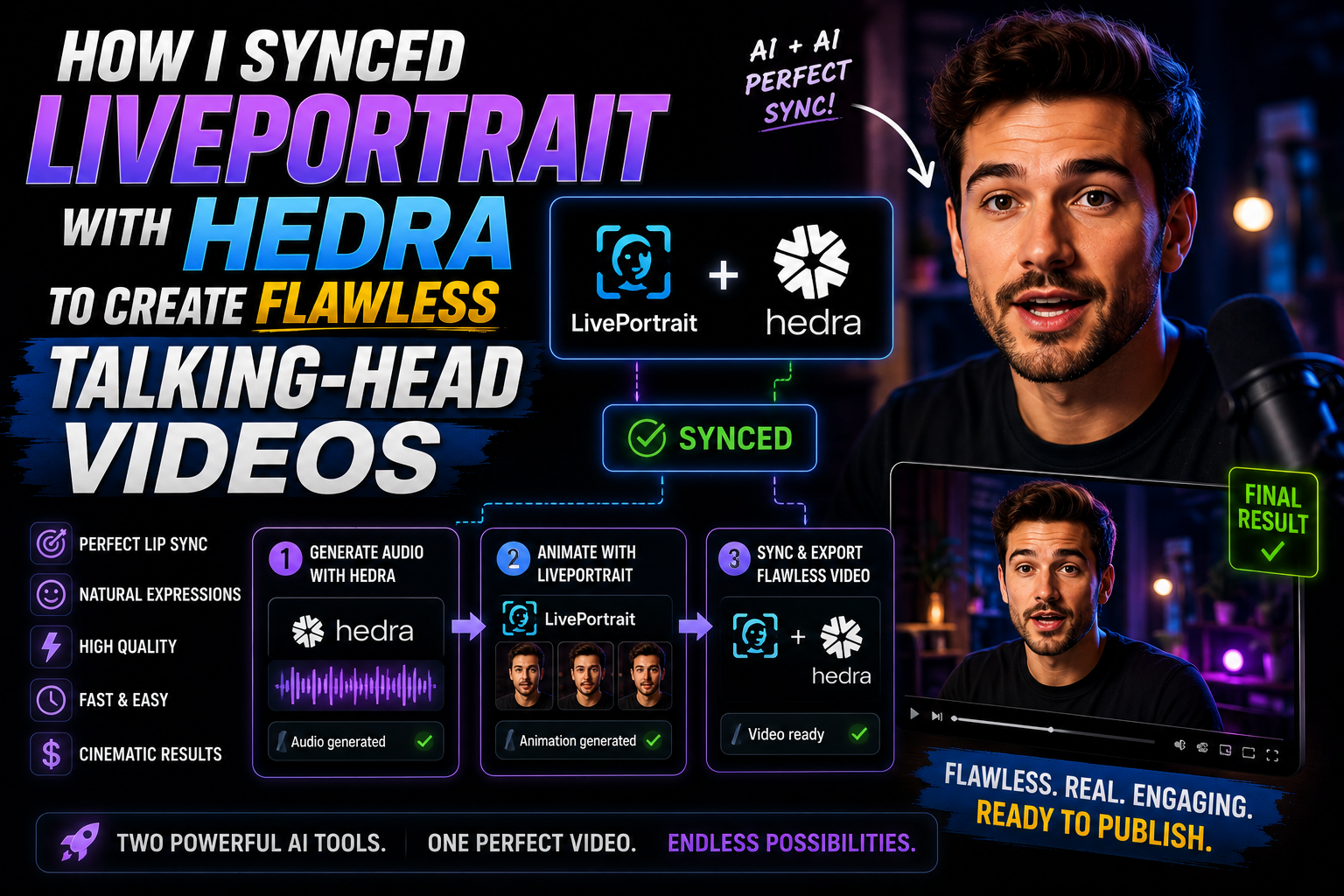
I realized these tools weren’t competitors—they were two halves of an ideal pipeline. By chaining Hedra’s audio-driven lip synchronization with LivePortrait’s expressive motion driving layer, I built a hybrid workflow that produces broadcast-quality talking heads with zero robotic stiffness.

Here is the exact step-by-step framework I use to sync LivePortrait and Hedra for ultra-realistic video outputs.
Tool Breakdown: Hedra vs. LivePortrait
Understanding where each tool excels is critical to structuring a dual-engine pipeline:
┌─────────────────────────────────────────────────────────────────────────────┐
│                          THE HYBRID AVATAR PIPELINE                          │
├─────────────────────────────────────────────────────────────────────────────┤
│  [ High-Res Avatar Image ] + [ Clean Voice Audio ]                           │
│                               │                                             │
│                               ▼                                             │
│                  Step 1: Hedra Engine                                       │
│                  (Generates Audio-Synced Lip Motion)                         │
│                               │                                             │
│                               ▼                                             │
│                  Step 2: LivePortrait Layer                                 │
│                  (Applies Expressive Pose & Micro-Movements)                │
│                               │                                             │
│                               ▼                                             │
│                  Step 3: Post-Processing & Upscaling                        │
│                  (Final High-Definition Talking Head Video)                 │
└─────────────────────────────────────────────────────────────────────────────┘
| Feature / Metric | Hedra Engine | LivePortrait Framework |
| Primary Input | Image + Audio Track | Image + Driving Motion Video / Keypoints |
| Lip-Sync Accuracy | Exceptionally High (Phoneme-based audio matching) | Moderate (Video-driven motion transfer) |
| Head Movement Control | Automated / Prompt-guided | Surgical Control (Pixel-level pose transfer) |
| Micro-Expressions | Subtle | Highly Customizable (Blinks, squints, head tilts) |
| Best Used For | Speech alignment & vocal cadence matching | Pose driving, emotional layering, & face stability |
The 4-Step Hybrid Workflow
To achieve natural head movement and mouth articulation, we run a multi-stage pass: we generate our baseline speech sync in Hedra, create an expressive driving video reference in LivePortrait, and composite the outputs together.
Step 1: Base Image & Voice Asset Preparation
The quality of your output depends heavily on your initial inputs.
-
Avatar Image: Generate or select a front-facing portrait image (1024×1024 or higher resolution). Ensure clear lighting around the jawline, eyes, and lips. Avoid photos where hair obscures the face or teeth are overly exposed.
-
Audio File: Export a pristine 24-bit WAV or high-bitrate MP3 audio track. Run noise reduction to eliminate background hums; audio artifacts can confuse speech-to-lip alignment models.
Step 2: Generating the Audio-Synced Lip Baseline in Hedra
First, pass your static character image and audio track through Hedra to construct the primary speech-synced video.
[ Character Image ] + [ Clean Audio ] ──> Hedra Engine ──> [ Video Output A: Perfect Lip Sync ]
-
Upload Assets: Load your source character image and audio file into the Hedra interface.
-
Prompt Direction: In Hedra’s prompt guidance box, describe minimal background motion and stable posture (e.g., “Professional spokesperson delivering a clear message in a clean studio, subtle neutral posture, natural speaking tempo”).
-
Render Video Output A: Generate the video. This render serves as our baseline reference where the mouth movements precisely match the spoken phonemes in the audio track.
Step 3: Layering Pose & Micro-Expressions in LivePortrait
While Hedra gives us precise lip synchronization, the head movement can sometimes feel rigid across longer scripts. This is where LivePortrait transforms the composition.
[ Video Output A (Hedra) ] + [ Driving Video / Expression Preset ] ──> LivePortrait ──> [ Expressive Motion Layer ]
To drive natural head movement, you can either use a short recorded video of yourself acting out natural gestures (a driving video) or select a pre-configured expression profile.
-
Load Assets in LivePortrait: Set your Hedra-generated video (
Video Output A) or original base image as your target source. -
Select Motion Source: Upload a driving video containing natural head tilts, eye blinks, and subtle shoulder movements.
-
Configure Retargeting Parameters:
-
Relative Motion Mode: Enable relative pose mapping so the character keeps its original facial structure while adopting the movement curves of the driving video.
-
Eye Link / Blink Control: Turn on automated eye-blink mapping to prevent the “staring” effect.
-
Lip-Motion Retargeting Multiplier: Lower the LivePortrait lip-driver strength slightly ($\approx 0.3 – 0.5$) if you are blending directly onto a Hedra video. This ensures LivePortrait enriches the head tilts and eye blinks without overwriting Hedra’s clean mouth shapes.
-

Step 4: Mask Blending & Final Composite
For absolute precision, combine the strengths of both tools using video editing software (such as DaVinci Resolve, Adobe Premiere, or an automated ffmpeg script):
-
Layer Order: Place the LivePortrait Expressive Motion Render on Video Track 1 (Base Layer). Place the Hedra Lip-Synced Render on Video Track 2 (Overlay Layer).
-
Mouth Region Masking: Draw a soft-feathered mask around the mouth and lower jaw region of Video Track 2 (Hedra).
-
Composite: Blend Track 2 over Track 1.
The Result: The character inherits the dynamic head movement, natural eye blinks, and micro-gestures from LivePortrait, while maintaining the precise lip-sync accuracy generated by Hedra.
Advanced Automation: Running the Pipeline via Code
If you prefer operating programmatically, you can script this workflow using Python to process avatar generations in batch mode.
Below is an example snippet showing how to drive a base image through LivePortrait using custom motion configuration parameters via Python API interfaces:
Python
import os
import requests

# Example script structure for passing Hedra outputs through LivePortrait API / ComfyUI Node

LIVEPORTRAIT_ENDPOINT = "http://127.0.0.1:8188/api/prompt" # Local ComfyUI or API endpoint

def process_hybrid_avatar(source_image_path, audio_path, driving_video_path):
    print("[1/3] Step 1: Generating baseline lip-sync render via Hedra API...")
    # Trigger Hedra API job with image and audio file
    hedra_video_url = generate_hedra_lip_sync(source_image_path, audio_path)

    print("[2/3] Step 2: Applying dynamic expression overlay in LivePortrait...")
    liveportrait_payload = {
        "source_image": hedra_video_url,
        "driving_video": driving_video_path,
        "retargeting_parameters": {
            "eye_blink_multiplier": 1.2,
            "head_pose_weight": 0.85,
            "lip_sync_weight": 0.35  # Preserve underlying Hedra mouth shapes
        }
    }

    response = requests.post(LIVEPORTRAIT_ENDPOINT, json=liveportrait_payload)
    final_render_path = response.json().get("output_video_path")

    print(f"[3/3] Workflow complete. Output saved to: {final_render_path}")
    return final_render_path

def generate_hedra_lip_sync(image_path, audio_path):
    # Mock function representing Hedra generation step
    return "temp_hedra_output.mp4"

if __name__ == "__main__":
    # Run pipeline on project directory
    process_hybrid_avatar(
        source_image_path="assets/presenter_avatar.png",
        audio_path="assets/voiceover_script.wav",
        driving_video_path="assets/natural_head_gestures.mp4"
    )
Workflow Benchmarks: Traditional vs. Hybrid Setup
To evaluate the impact of this dual-tool method, I benchmarked three avatar production approaches across a 60-second video script:
| Production Approach | Setup Complexity | Realism & Naturalism | Lip-Sync Accuracy | Artifacts / Distortion |
| Standard Single-Pass AI Tool | Very Low | 5 / 10 | 7 / 10 | High risk of frozen posture or warping |
| Standalone LivePortrait | Moderate | 8 / 10 | 6 / 10 | Excellent head movement; requires driving clip |
| Standalone Hedra | Low | 7.5 / 10 | 9.5 / 10 | Great speech alignment; occasionally static pose |
| Hedra + LivePortrait Hybrid | High | 9.5 / 10 | 9.5 / 10 | Minimal to zero artifacts; lifelike movement |
Pro-Tips for Maximizing Realism
-
Control Your Lighting Vectors: Match the directional lighting in your driving video to your avatar photo. Inconsistent shadows between the face and neck can cause subtle flickering during pose transfers.
-
Apply Post-Processing Face Restoration: Run the final composite through a face upscaler (like CodeFormer or GFPGAN) to restore fine details around eyes, teeth, and skin texture that may blur slightly during generation.
-
Add Subtle Color Noise: Clean digital renders can look suspiciously sterile. Adding 1-2% film grain or temporal noise across the entire frame binds the masked face layer seamlessly into the background layer.
Final Thoughts: Crossing the Uncanny Valley
Combining generative tools opens up new workflow possibilities. By leveraging Hedra for precise audio-driven speech mechanics alongside LivePortrait for natural expression and pose control, you bypass the traditional limitations of single-purpose AI generators.
Whether you are producing automated YouTube video series, corporate training modules, or marketing explainers, this hybrid pipeline provides full creative control over your digital presenters without sacrificing output quality.